
How to full pair iPhone and iPad (iOS 27) child devices to your OurPact account:
Before you start:
Full Pairing on iOS 27 works differently. Apple now requires the device to be erased and set up again before it can be supervised.
See instructions here to full pair iPhone and iPads on iOS 18 and older and iOS 26.
Your data comes back, but the device needs some setting up again. During setup the device restores from your iCloud backup, and your apps, photos, messages and settings come back with it. OurPact installs itself at the end, and the device stays paired. Think of it like moving to a new iPhone: the content returns, but a few things have to be set up by hand.
What you'll need to do again after the restore:
- Sign in again to iCloud and to apps that use a saved login, including anything unlocked with Face ID or Touch ID.
- Set up Face ID or Touch ID on the device.
- Add your Apple Pay cards again.
- Trust your computer again the first time you connect it.
- Re-download anything saved for offline use — films, shows and audiobooks in apps like Netflix, Disney+, Prime Video or Audible.
A few things to expect:
- Apps are re-downloaded from the App Store rather than restored from the backup. An app that is no longer on the App Store can't come back.
- Photos and messages kept in iCloud sync back after setup rather than arriving with the backup, so they can take a while to fill in. Keep the device on Wi-Fi and power.
- Profiles from other parental control or device management apps don't come back. If the device is registered to a school or employer, that management reapplies itself.
Complete Step A before you begin. Step B is optional.
A. Back up the device to iCloud. This is required.
An iCloud backup is the only backup that restores your data and keeps the device paired.
On your child's device, open Settings → [your child's name] → iCloud → iCloud Backup, tap Back Up Now, and wait for it to finish. (see How to back up with iCloud)
Make the backup shortly before you pair, so it's current. Pick a time when your child doesn't need the device, and keep it plugged in and on Wi-Fi.
Not enough iCloud storage? Use Settings → General → Transfer or Reset iPhone/iPad → Prepare for New iPhone/iPad instead. Apple grants free temporary storage for this, so the backup completes even if iCloud is full. (see Get temporary iCloud storage)
Pairing from a Windows computer? Install iTunes first (see Step 2).
B. Optionally, you can also make an encrypted backup on your computer.
This is insurance on your data, not on the pairing. If the iCloud restore fails, you can restore this backup to get everything back — but that removes the pairing, and you'd need to Full Pair again from the start.
On a Mac, use Finder. Nothing to install. Plug in the device and click on its name to show backup options.
On Windows, use iTunes. You'll need it installed for pairing anyway, and it doesn't come with OurPact Connect. (see Backing up with Windows)
Connect the device, tick Encrypt local backup, choose to back up all of the data, and set a password. Keep that password. An encrypted backup can't be restored without it, and it can't be recovered. (see About encrypted backups)
Use it right away if you need it. It goes out of date once the device is back in everyday use.
To remove OurPact later you don't need any of this. OurPact Connect unpairs the device without touching the data.
1. Sign up with OurPact (skip if you already have an account)
You can SIGN UP by creating an OurPact account or choose “Sign Up with Apple” or “Sign Up with Google.”
2. Download and Install OurPact Connect
Navigate to connect.ourpact.com in Chrome, Safari, or Firefox on a computer (Internet Explorer or Edge does not support installation). Download OurPact Connect.
Don't have a computer? If your child has an iPhone or iPad, you can access limited features using Quick Pair.
Using a Windows computer? You'll also need iTunes installed and open on your computer while you pair. iTunes doesn't come with OurPact Connect. Get it from Apple, open it, and connect your child's device to make sure iTunes recognizes it before you start Step 3. (See Why is iTunes Required for Pairing with Connect?) Mac computers don't need iTunes.
3. Open OurPact Connect to Start Pairing
Launch the newly downloaded Connect application from your Downloads / Applications.
Start by selecting 'Pair' and iOS for the device type.
(If you're pairing your child's Android device, please follow these instructions.)
Enter your OurPact account email and password, or sign in using the Apple or Google Single Sign-On.
Connect your child's device to your computer using a USB or charging cable.
Accept the 'Trust' prompt on your child's device. If you have previously trusted the computer you are using for installation, you may not get this prompt.
(If you can't move past the 'Trust' prompt in the installation, please click here for more help.)
Disable 'Find My Phone' on your child's device if enabled.
To do so, first check Stolen Device Protection.
If Stolen Device Protection is on, Find My can't be turned off until you disable it. On your child's device, open Settings → Face ID & Passcode → Stolen Device Protection and turn it off. You'll need your child's device passcode.
Do this at home if you can. Away from a familiar location, Apple starts a one-hour security delay before the setting can be turned off. If Require Security Delay is set to Always, the delay applies everywhere, including at home. (About Stolen Device Protection)
Once that's off, you can turn off Find My. To do so, navigate to the device Settings > [your child's name] > Find My > then turn 'Find My Phone' OFF.
You will need your child's Apple ID login information to turn off 'Find My Phone.'
If you can't disable Find My Phone on your child's device, please click HERE.
Choose to pair the device to an existing child profile or create a new one.
If choosing to create a new child profile, enter the new child profile name. This name can be changed later in your management dashboard.
4. Confirm your backup is done.
Before you continue, check that the iCloud backup you made at the start actually completed. On the device, open Settings → [your child's name] → iCloud → iCloud Backup and check the time shown under Back Up Now.
If you haven't made it yet, do it now. See Step A under Before you start at the top of this article. Connect will wait.
Check your "Encrypted Local Backup" if you created one

5. Continue to Pair OurPact.
Full Pair erases the device, pairs it with OurPact, and then restores your data. When you're ready, tick the box and click ERASE AND FULL PAIR. You may need to scroll down.
Please verify again that you have a recent completed iCloud Backup. Then "ERASE AND FULL PAIR".
OurPact Connect will go through the process of setting up and pairing the device automatically. This will take 8 different steps.
Once this is completed, your device will start up again. Press "Trust" when prompted.
If your child's device does not have sim card and data, please set up wifi when prompted.
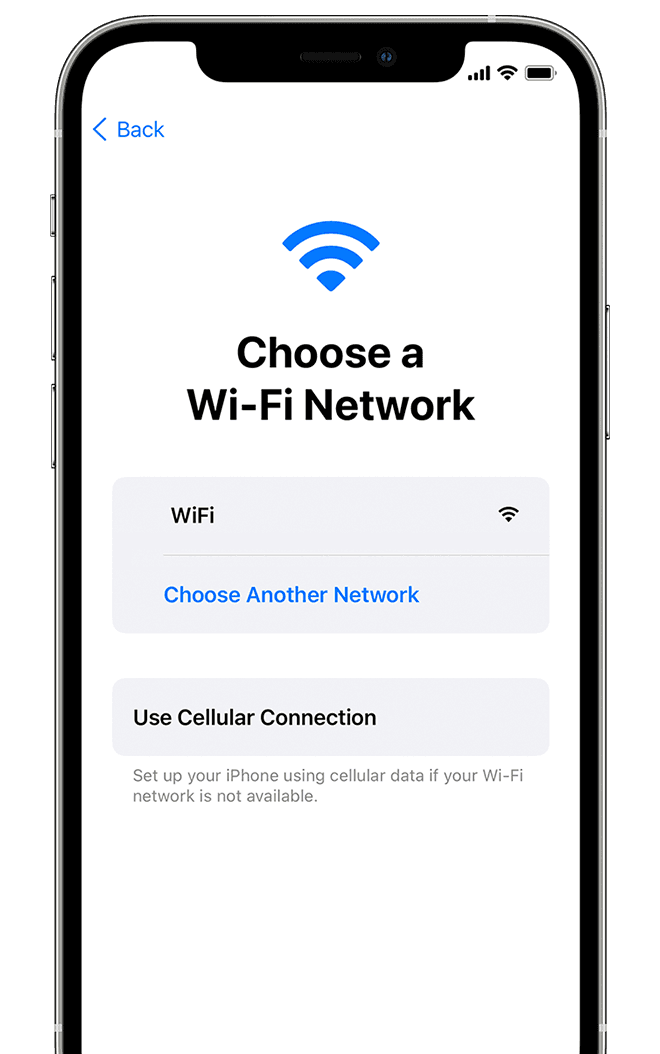
6. Restore your device from an iCloud backup
When the device asks Transfer Your Apps & Data, choose From iCloud Backup.
Do not choose "From Mac or PC." Restoring from a computer at this point removes the pairing, and you'd have to start the Full Pair again from the beginning.

-
Sign in to your Apple Account.
-
Choose a backup. Look at the date and size of each and pick the most relevant. After you choose a backup, the transfer starts. If a message says that you need a newer version of software, follow the onscreen steps to update. Learn what to do if you don't see onscreen steps to help you update your device.
-
When asked, sign in to your Apple Account to restore your apps and purchases. If you've purchased iTunes or App Store content using multiple accounts, you'll be asked to sign in to each account. If you can't remember your password, you can tap Skip this Step and sign in later. Until you sign in to your Apple Account, you will not be able to use the apps.
-
Stay connected to Wi-Fi and wait for a progress bar to appear and complete. Depending on the size of the backup and the network speed, the progress bar might need some time to complete. If you disconnect from Wi-Fi too soon, the progress will pause until you reconnect.
-
Finish setting up your device. Content like your apps, photos, music, and other information will continue to restore in the background. Try to connect often to Wi-Fi and power to let the process complete.

Enroll the device
Partway through, the device shows a Device Management screen saying this iPhone is owned by OurPact.
Tap Enroll this Phone. That's the only thing to do here — OurPact Connect has already set everything up, and enrollment completes on its own.
The "owned by" wording is Apple's standard text for a managed device, and it's expected. It doesn't mean OurPact can see your child's private data or browsing outside what you've set up. (What supervision means)
Complete the remaining iOS setup steps. You can choose to set up or skip the following:
Face ID, light or dark mode, update preference, location services, Apple pay, Screen Time, Analytics, Siri and Emergency SOS.
After you finish setting up your device and restore your data from iCloud, OurPact's installation is complete, and you can begin managing your child's device!
One of the first steps of OurPact pairing is that the OurPact Jr. app gets automatically installed. If you don't see this app on the device, go to Settings →Media & Purchases. You may have to sign in here again with the Apple account and accept new Terms & Conditions. You can install OurPact Jr later from the OurPact parent app's My Family screen.
If you don't have a computer
You can still manage your child's iPhone or iPad with Quick Pair. It pairs over the air, with no computer and no cable, and works on any plan. Quick Pair includes manual blocks, schedules, screen-time limits, Locator and View Content Monitoring.
- Download and open OurPact Jr. on your child's iOS device
- Tap 'Don't have a computer?'
- Sign in & follow the prompts to pair
Full Pair adds Web Filter, App Rules for any app, System Restrictions and App Organizer, plus Tamperproofing on iOS 18 and older. Quick Pair blocks apps rated 5+. Android devices need Full Pair. If you have a computer, we recommend Full Pair so you can use everything.
Need more help? Please email us at support@ourpact.com
Please include your OurPact account email, computer type, and any details about issues or error messages you've encountered.
Comments
0 comments
Article is closed for comments.